
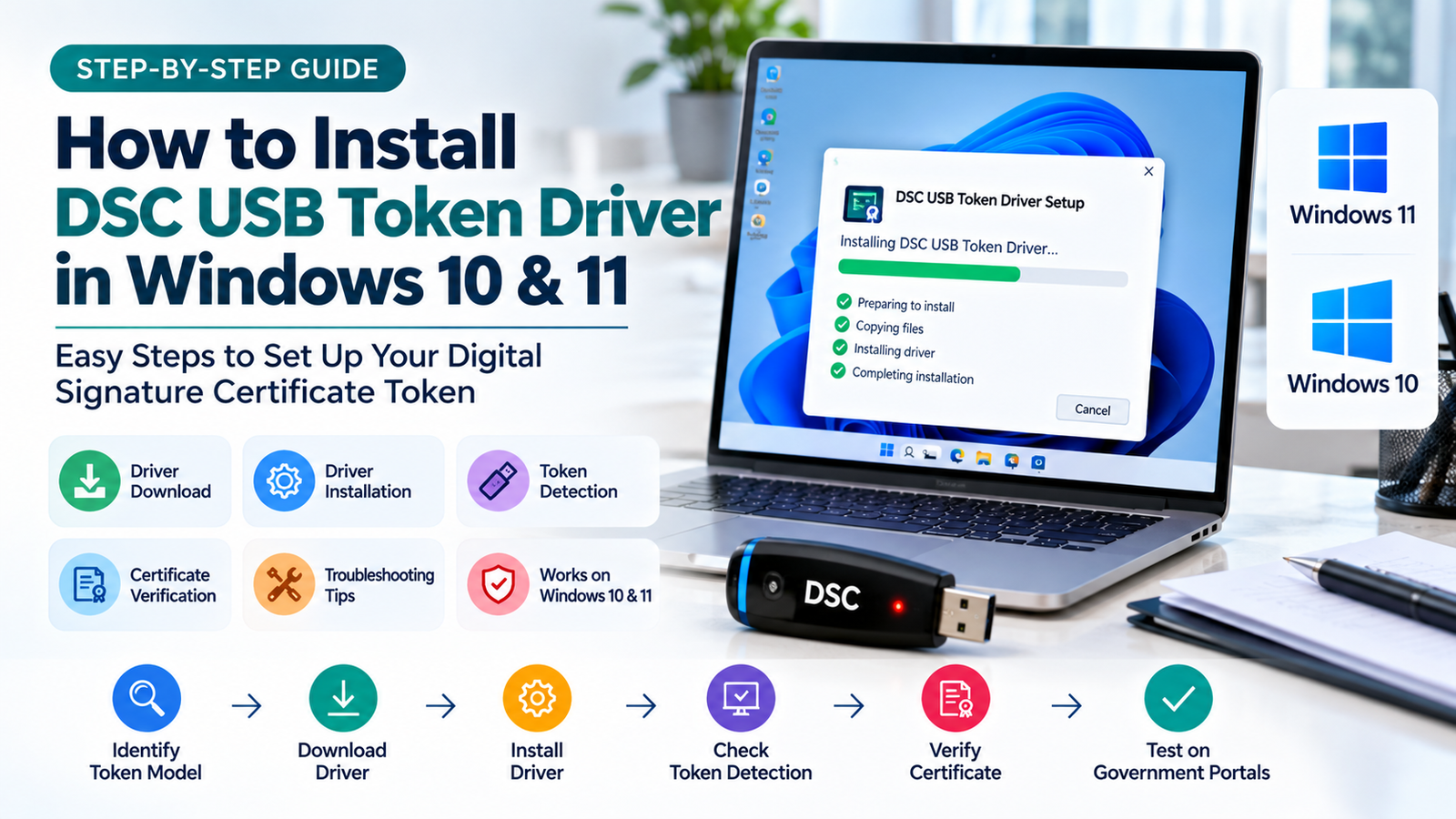
Many people need to know how to install a DSC USB token driver at the same moment: a newly purchased token, a token Windows does not detect, a certificate that does not show in the signing application, or a first-time setup for a government or business portal. The steps below are general. The exact installer and screens differ by token maker, model and provider, so use them with your token’s official instructions.
What Is a DSC USB Token Driver?
A DSC USB token is a small hardware device that stores your digital signature certificate and its private key. A driver is software that lets Windows communicate with that device. Some tokens may be recognised by Windows with built-in support, while others need the maker’s own software, so do not assume either way.
Three things are often confused. They do different jobs:
Token driver
Lets your computer talk to the USB token.
Certificate
Your Digital Signature Certificate, issued by a licensed Certifying Authority and stored on the token.
Signing utility
Helper software that some websites use to reach the token and sign.
Simple example: think of the token as a locker, the certificate as the document inside, and the driver as the key that lets your computer open the locker door. The signing utility is the courier that carries the document to a website.
Important: installing a driver does not issue or create a DSC. The certificate must already be issued to you, correctly stored on the token, valid, and supported by the application or portal you use. The correct driver depends on the token’s manufacturer and model. There is no single universal driver for all tokens.
Requirements Before You Install
Exact requirements vary by token and provider. Most setups need:
✅ A Windows 10 or Windows 11 computer
✅ The DSC USB token, with its manufacturer and model details
✅ The correct driver from an official source
✅ Permission to install software. Drivers usually need administrator rights because they change how Windows talks to hardware. If it is an office computer, get authorisation from your IT administrator first.
✅ Your DSC provider’s software or signing utility, if your portal needs one
✅ A valid certificate on the token, where applicable
✅ A stable internet connection, if the official installer downloads extra files
How to Install DSC USB Token Driver in Windows 10 & 11
Follow the steps in order. Steps 1 to 6 install the driver. Steps 7 to 10 check the token, the certificate and the signing setup, which are separate from the driver.
1
Identify your DSC USB token
Find the manufacturer’s name and model. Look on the token body, its packaging, or the paperwork from your DSC provider. If you cannot find it, ask your provider.
2
Find the correct driver
Go to the token manufacturer’s official website, or your DSC provider’s official support page. Confirm that your exact model and your Windows version are supported before you download.
3
Download the driver
Download the installer only from that official source. Check that the file name and publisher match what the maker or provider describes. If a page asks you to disable antivirus or Windows security, stop and ask your provider instead.
4
Install the driver
Run the installer and follow its instructions. If it asks for administrator permission, a Windows prompt will appear. Approve it only if you trust the file and are authorised to install software. Close other signing programs before starting. If the manufacturer gives its own steps, follow those, as screens differ between makers.
5
Restart the computer if required
If the installer asks for a restart, do it. A restart lets Windows finish loading the driver and services.
6
Connect the DSC USB token
Plug the token directly into a working USB port, not into a hub. Wait a few seconds so Windows can detect it. Some tokens show a light when connected, but not all do.
7
Check whether Windows detects the token
Right-click the Start button and choose Device Manager. This works in both Windows 10 and Windows 11. Expand the categories and look for your token. It may appear under headings such as Smart card readers, Universal Serial Bus controllers, or Other devices. Names and categories vary by maker and driver.
A yellow warning icon or an “Unknown device” entry can point to a driver or device problem, but it is not conclusive on its own. If you see one, go back to Step 2 and confirm the driver matches your token. You can also try Action then Scan for hardware changes.
8
Verify the certificate
Open the token-management software that came with the driver, or your DSC provider’s utility, and check that your certificate is listed. You may need your token PIN to view it. Enter it yourself and never share it. Do not export or copy private keys. If the certificate is missing, contact your provider. Do not format or initialise the token unless the provider tells you to, because that erases everything on it.
9
Configure the required signing utility
Some websites and applications need extra signing software or browser setup. Check the portal’s Help or Downloads section and follow its official instructions. Do not assume every portal uses the same utility. For example, DGFT’s official FAQ asks users to install eMudhra’s emBridge for its workflow, but that does not mean every portal needs it.
10
Test the DSC
Test in a supported application or on the official portal, ideally with its own test or verification option. Avoid testing first on an important live filing. A successful driver installation does not guarantee that the DSC will work on every portal. The certificate, utility and portal rules must also match.
How to install a digital signature certificate on a USB token
People also search for this, so here is the distinction. The certificate is issued by a licensed Certifying Authority and loaded on your token through your provider’s own process, which often includes identity verification. Follow your provider’s instructions for that. A driver on its own does not install a certificate.
Windows 10 and Windows 11: what differs?
| Task | Windows 10 | Windows 11 |
|---|---|---|
| Open Device Manager | Right-click Start, choose Device Manager | Right-click Start, choose Device Manager |
| Optional driver updates from Windows Update | Settings, Update & Security, Windows Update, then view optional updates | Settings, Windows Update, Advanced options, Optional updates |
| DSC token driver source | Token maker or DSC provider | Token maker or DSC provider |
Windows Update may offer driver updates, but Microsoft’s guidance is that if it does not find one, you can look on the device manufacturer’s website. For a DSC token, the maker’s own package is normally the right source.
How to Check the Driver Is Installed Correctly
Look for these signs together. No single check proves everything works.
✅ Windows detects the token in Device Manager
✅ The driver shows no obvious device error
✅ The token software recognises the token
✅ Your certificate is visible in the appropriate software
✅ The application or portal can use the certificate, provided its other requirements are met
How to Download the Correct DSC USB Token Driver
Note down these details before you search for a DSC USB token driver download.
| Information to check | Why it matters |
|---|---|
| Token manufacturer | Different manufacturers may use different drivers |
| Token model | The driver may be model-specific |
| Windows version | Compatibility can vary |
| System architecture | Some installers distinguish between 32-bit and 64-bit systems |
| Official download source | Reduces the risk of installing unsafe software |
| Installation instructions | Helps prevent configuration errors |
iSaral drivers: our USB drivers and utilities page lists drivers for HYP2003 (Drive 3), Proxkey and Precision Innait tokens. For Precision Innait, the page links to the manufacturer’s own download site. If your token is not on that list, contact your DSC provider or us for guidance.
Common DSC USB Token Driver Installation Problems and Solutions
Not every problem is a missing driver. Use these as starting points.
| Problem | Possible cause | What to try | Contact |
|---|---|---|---|
| DSC USB token is not detected | Loose connection, faulty port, missing driver, damaged token | Reconnect directly to another port, check Device Manager, confirm the driver matches your token | Token maker or provider if it fails on other computers |
| Windows shows an unknown USB device | Driver missing, wrong or not loaded | Identify the token, install the official driver, restart, then scan for hardware changes | Provider if no official driver can be found |
| The driver installer fails | Missing permission, wrong version, another installer running, corrupted download | Check Windows version support, get authorisation for admin rights, download again from the official source, restart and retry | Token maker or your IT administrator |
| The certificate does not appear in token software | Certificate not loaded, wrong software, token reset | Check you are using the token maker’s software for your model | DSC provider. Do not format the token yourself |
| The DSC works in one application but not another | Different utility, browser or certificate requirements | Follow the second application’s own setup instructions | That application or portal’s support |
| The signing utility does not recognise the token | Utility not running, not installed, or token driver problem | Confirm Windows and the token software see the token, then reinstall the official utility | Portal or provider support |
| The DSC is not detected on a government portal | Utility, browser, registration or expired certificate | Follow the portal’s instructions and check the certificate’s expiry date | The portal’s support team |
| The token works on another computer but not this one | Driver, permissions, software conflict or USB port on this computer | Reinstall the official driver, try another port, ask whether security software is blocking the installer | Your IT administrat |
Difference Between a DSC Token Driver and a Signing Utility
| Point | Token driver | Signing utility |
|---|---|---|
| Purpose | Lets Windows communicate with the USB token | Lets a website or application use the token to sign |
| What it enables | Detection of the token and access by token software | Signing and certificate selection on supported portals |
| Same across providers? | No. It depends on the token maker and model | No. It depends on the portal and provider |
| What to check when it fails | Device Manager, the driver’s match to your token, the installer | That it is installed, running and the version the portal asks for |
They play different roles, and some setups need both.
Is a DSC USB Token Driver Required for Every Digital Signature Certificate?
Not necessarily in every case. It depends on the token, the operating system, how the certificate is set up and the application you use. A token may work with Windows’ built-in support in some situations, while others need the maker’s driver or software. A certificate stored somewhere other than a USB token follows different setup rules. Check your provider’s instructions for your token.
Frequently Asked Questions
1. How do I install a DSC USB token driver in Windows 11?
Identify your token’s maker and model, download the driver from the official maker or provider page, check it supports Windows 11, run the installer, restart if asked, then connect the token and check it in Device Manager.
2. How do I install a DSC USB token driver in Windows 10?
The process is the same: identify the token, get the official driver for Windows 10, install it, restart if asked, reconnect the token and check Device Manager. Optional update paths in Settings differ slightly between Windows 10 and 11.
3. How do I install a DSC USB token driver?
Identify your token’s maker and model, get the driver from the maker’s official site or your DSC provider, check that it supports Windows 11, run the installer, restart if asked, then reconnect the token.
4. Why is my DSC USB token not detected?
Common causes are a poor connection, a faulty port, a missing or wrong driver, or a damaged token. Try another port and computer, and check Device Manager. The cause is not always the driver.
5. Why is my digital signature certificate not showing?
The certificate may not be on the token, you may be using the wrong software, or the signing utility may not be configured. Check the token’s own software first, and contact your provider if it is missing.
6. Do I need to install a driver for my DSC USB token?
Often yes, but it depends on the token, Windows setup and application. Follow your provider’s instructions for your token.
When Should You
Contact Technical Support?
- The token manufacturer: if the token is not detected on several computers, or the driver is not available for your model.
- Your DSC provider: if the certificate is missing, expired, or the token needs formatting or unlocking.
- The portal’s support team: if Windows and the token software work but the portal rejects the certificate.
- Your IT administrator: if you lack permission to install software or security policies block the installer.
Never share your token PIN, private keys, passwords or other authentication secrets with anyone.
Conclusion
To install a DSC USB token driver correctly: identify your token, download its driver from an official source, install it, check that Windows detects the token, confirm the certificate is available, set up the signing utility your portal asks for, and test the DSC. A driver is only one part of the setup.
If you need help with a DSC application, documents, installation or troubleshooting, these pages may help.