
- In This Article
- What Does “DSC Not Detected” Mean?
- Common Reasons a DSC Is Not Detected
- Before You Start Troubleshooting
- Step-by-Step Fixes for Windows 11
- DSC Troubleshooting Table
- DSC Problems on Government Portals
- How to Prevent DSC Problems
- When to Contact Technical Support
- Frequently Asked Questions
- How iSaral Can Help
- Conclusion
Need help with your DSC token?
Not sure which driver your token needs? Our team can help you identify your token and find the right driver.
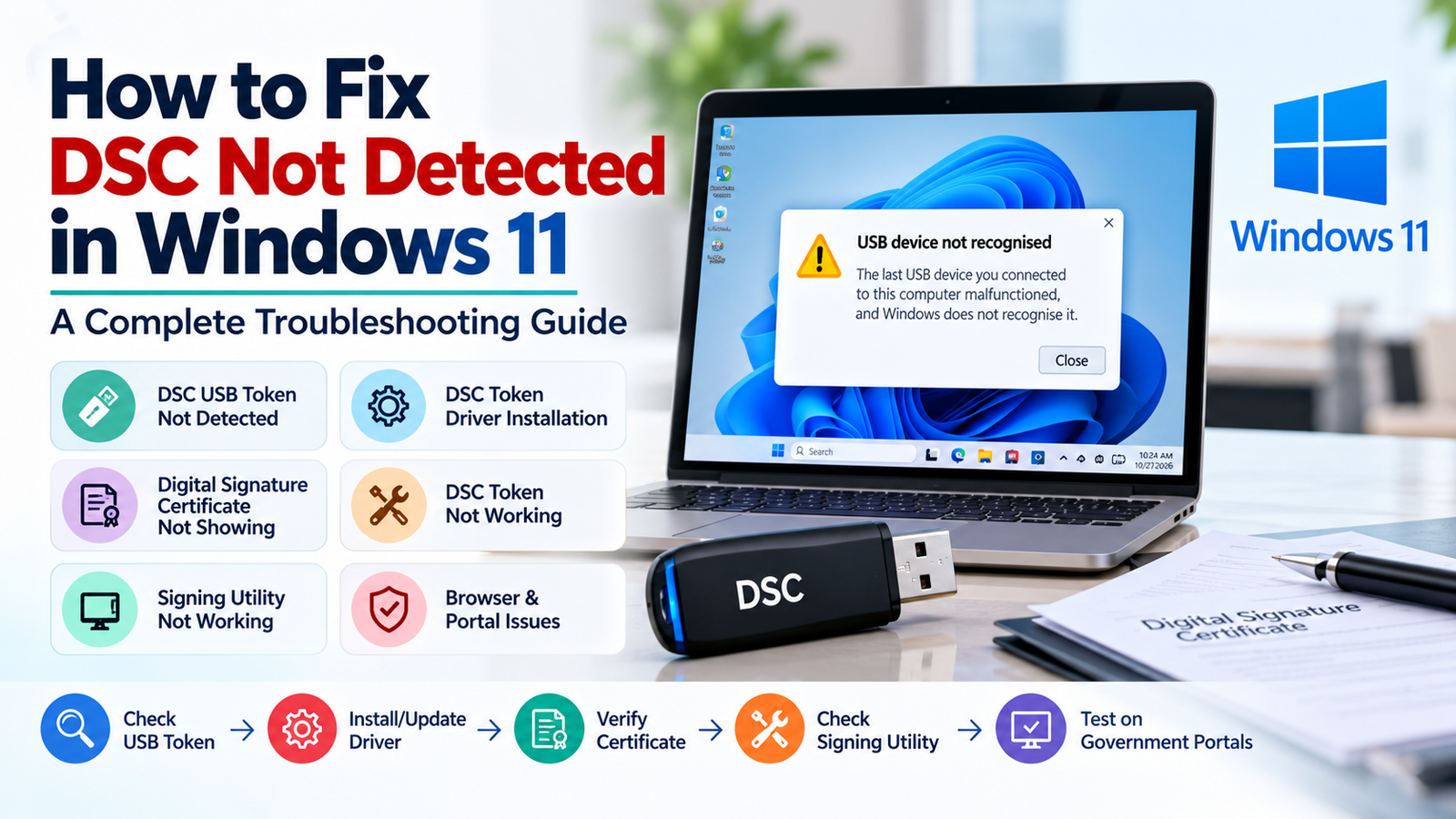
You plug your USB token into a Windows 11 computer, open a government portal, and nothing happens. The certificate does not appear, or the portal says it cannot find your token. If you are facing DSC not detected in Windows 11, the cause may be the USB connection, the token driver, the signing utility, the certificate itself, your browser, or the portal.
The right fix depends on where the failure occurs. This guide helps you work out which stage is failing and then walk through safe fixes in order. It also tells you when to stop and ask your DSC provider for help.
Key Takeaways
- Not every DSC problem is a Windows 11 problem. Find the failing stage first.
- Different tokens use different drivers, and different portals use different signing utilities.
- Download drivers and utilities only from the token maker, your provider, or the portal.
- Never share your token PIN, passwords or private keys with anyone.
1. What Does “DSC Not Detected” Mean?
A Digital Signature Certificate (DSC) usually sits on a USB crypto token, which is a small hardware device that stores the certificate and its private key securely. “Not detected” can describe several different problems. Naming the right one saves time.
A certificate that works on one portal may not work on another until the right utility and registration are in place. For DGFT-specific requirements, see our Class 3 DGFT DSC page.
| Stage | What you see | Problem type |
|---|---|---|
| 1. Windows does not detect the token | Nothing appears in Device Manager, or an unknown device appears | USB connection or driver |
| 2. Windows detects the token, but the certificate is not visible | The token software shows no certificate | Certificate missing, or wrong software or driver |
| 3. The certificate is visible, but the signing utility cannot access it | The utility reports no token or certificate | Utility installation or service |
| 4. The utility works, but the website cannot detect the certificate | The portal says the token or utility is not found | Browser, portal or utility connection |
| 5. The website detects the certificate but rejects it | Error during signing or registration | Portal registration or certificate mismatch |
| 6. The certificate is expired or unsuitable | Rejected or not usable for the task | Certificate validity or type |
Do not start by reinstalling everything. First identify the exact error and the stage where it happens.
2. Common Reasons a DSC Is Not Detected in Windows 11
Not every cause applies to every token or portal. Use the symptoms to recognise the likely one.
USB token connection problems
Symptoms: nothing appears in Windows when you plug in the token. Possible causes include a loose connection, a faulty USB port, or a damaged token.
Incorrect or missing token drivers
Symptoms: an unknown device appears, or the token software cannot find the token. Tokens from different makers need different drivers, so a driver for one model may not work for another.
Driver compatibility problems
Symptoms: the driver installs but the token still does not work. The driver may not support Windows 11 or your system type (32-bit or 64-bit).
Signing utility installation issues
Symptoms: the token is visible in Windows, but the portal cannot talk to it. A signing utility is a helper program that lets a website use the token. Which one you need depends on the portal, provider and token setup.
Signing utility service not running
Symptoms: the utility is installed, but the portal says it is not running. Some utilities need a background process to be active while you work.
Certificate missing from the token
Symptoms: the token is detected, but the token software shows no certificate. The certificate may not have been loaded, or the token may have been reset.
Expired certificate
Symptoms: the certificate shows but is rejected, or is not offered for signing. See our guide on what to do when your DSC expires.
Browser or portal compatibility problems
Symptoms: the utility works on one browser or portal but not another.
Incorrect certificate selection
Symptoms: the signing window lists several certificates and the portal rejects the one you picked.
Portal registration or certificate mapping issues
Symptoms: the certificate is detected and valid, but the portal says it is not registered or does not match the signer. Some portals need you to register or associate the certificate first.
3. Before You Start Troubleshooting
A few minutes of preparation prevents wrong fixes. Collect the following:
- Token maker and model. Check the label on the token or your provider’s paperwork.
- Ownership. Confirm that the token belongs to you or your authorised organisation.
- Windows detection. Check whether Windows sees the token (Fix 2 below).
- The website or application where the problem happens.
- The exact error message. Write it down.
- Certificate validity. Check the expiry date.
- The official driver and signing utility for your token and portal.
Warning: do not enter your token PIN repeatedly if it is rejected. Some tokens lock after a limited number of failed attempts. Do not share your PIN, passwords or private keys with anyone, and do not post screenshots that show them.
4. Step-by-Step: How to Fix DSC Not Detected in Windows 11
Work through these fixes in order. Stop when the problem is solved.
Fix 1: Check the USB token connection
- Close any program that is using the token.
- Use the “Safely Remove Hardware” icon in the taskbar tray if it shows the token, then unplug it.
- Plug the token directly into a working USB port on the computer. Avoid USB hubs and extension cables while testing.
- Try a different port. Test one that you know works with another device.
- Look for any sign of power or activity on the token. Many tokens have an indicator light, but not all do.
If Windows still does not react, test the token on another computer. If it fails there too, the token may be faulty, so contact your provider.
Fix 2: Check whether Windows detects the token
- Right-click the Start button and choose Device Manager, or press Windows + R, type
devmgmt.mscand press Enter. - Look through the device categories for your token. Depending on the model, it may appear under categories such as Smart card readers, Universal Serial Bus controllers, or Other devices. Names vary by token and driver.
- Look for a yellow warning triangle or an entry named “Unknown device”.
- With the token still plugged in, choose Action then Scan for hardware changes.
| What you see | What to do |
|---|---|
| The token appears normally | The driver is probably loaded. Go to Fix 4. |
| The token appears as an unknown device or shows a warning | A driver is probably missing or wrong. Go to Fix 3. |
| The token is not listed at all | Repeat Fix 1, and test another port and computer. This points to a connection or hardware problem. |
Fix 3: Install or update the correct DSC token driver
A token driver is the software that lets Windows communicate with the token. It must match your token’s maker and model, so a DSC token driver installation should always start with identifying the token.
- Identify the token maker and model.
- Get the driver from the token maker’s official website, or from your DSC provider.
- Check that the driver supports Windows 11 and your system type.
- Follow the maker’s installation instructions. If you need administrator permission, follow your organisation’s IT policy.
- Restart the computer if asked.
- Reconnect the token and check Device Manager again.
If you cannot find the official driver page, ask your provider which driver your token needs. Avoid driver websites you do not trust, and do not use “driver updater” tools for this. Windows Update may offer driver updates under Settings, Windows Update, Advanced options, Optional updates, but a DSC token usually needs its maker’s own package.
Fix 4: Check whether the DSC certificate is present
Windows detecting the token does not mean a usable certificate is on it. Open the token manufacturer’s own management software, which is installed with the driver. It should show the certificates stored on the token, and you may need your PIN to view them.
- Token visible but certificate missing: contact your provider. Do not format or initialise the token unless your provider tells you to, because that erases everything on it.
- Certificate belongs to someone else: do not use it. Contact the provider.
- Certificate expired: renew it.
- Several certificates present: note which one is meant for your task.
Warning: never export or copy private keys, and never try to bypass certificate security.
Fix 5: Install or repair the required signing utility
Many portals cannot read a USB token directly. They use a signing utility installed on your computer. Which utility you need depends on the portal, certificate provider and token setup. For example, eMudhra’s emBridge and emSigner are used by some government portals, but not every DSC application needs emBridge.
- Open the portal’s Help, FAQ or Downloads section to see which utility it asks for.
- Check whether that utility is already installed on your computer.
- Download it only from the portal or provider’s official page, and check that it supports Windows 11.
- Follow the portal’s installation instructions.
- Check whether the utility is running (Fix 7).
- If it keeps failing, uninstall it, restart the computer and reinstall the latest official version.
Avoid running more than one signing utility at the same time unless the portal says it is fine.
Fix 6: Check browser and portal compatibility
- Check the portal’s Help section for its currently supported browsers.
- Update your browser to a current version if the portal requires it.
- Close and reopen the browser after installing or restarting a signing utility.
- Follow the portal’s own instructions for connecting the browser to its utility.
- If the portal recommends a configuration, test with that.
Clearing browser data is not a universal fix. Try it only if the portal’s own guidance suggests it.
Fix 7: Check the signing utility is running
Some utilities run as a Windows service or a background process, and some do not. Check the portal’s instructions first.
- Open the utility from the Start menu and look at its status window, if it has one.
- Check the system tray (the arrow near the clock) for the utility’s icon.
- If the portal’s instructions mention a Windows service, press Windows + R, type
services.msc, press Enter and look for the service the instructions name. - If a refresh button is offered, use it, then restart the utility if needed.
DGFT’s official FAQ, for example, tells users to check that the emBridge utility is running, and mentions a Smart Card service check in services.msc for its workflow. Do not start unrelated services. Some utilities may need administrator rights, so follow your organisation’s IT policy.
Fix 8: Check certificate validity and details
Use the token manufacturer’s application to open the certificate details. Check:
- Expiry date: an expired certificate cannot be used.
- Name: it should match the signer or organisation the portal expects.
- Certificate type: some portals accept only certain types of certificate for certain actions.
- Correct selection: pick the right certificate if several are listed.
A valid certificate can still be rejected if it does not meet the portal’s requirements.
Fix 9: Check DSC registration on the portal
Some portals need you to register or associate your certificate before you can sign. Look in the portal’s Help or profile section for its registration process. Menu names and steps differ between portals, so follow the portal’s own instructions. If you renewed or replaced your certificate, you may need to register the new one. On DGFT, check the current DGFT instructions before you act.
Fix 10: Restart and test the complete setup
Restart the computer, reconnect the token, and run through this checklist:
- Token detected by Windows
- Correct driver installed
- Expected certificate visible in the token software
- Required signing utility working
- Supported browser and portal configuration
- Certificate valid and suitable
- Certificate registered, where the portal requires it
Then test signing using the portal’s own test or verification option, if it offers one. Avoid testing on an important live filing first.
5. DSC Troubleshooting Table
These are likely causes, not confirmed diagnoses. Your case may differ.
| Error or symptom | Likely cause | Recommended first action | When to contact support |
|---|---|---|---|
| DSC token not detected | Connection, port or driver | Try another port and check Device Manager | Not detected on other computers |
| Unknown USB device | Missing or wrong driver | Identify the token, then install its official driver | No official driver can be found |
| Token detected but certificate missing | Certificate not loaded, wrong software, or token reset | Check the token maker’s software | Certificate is still missing |
| DSC certificate expired | Validity period has ended | Check the expiry date and renew | You need renewal help |
| Signing utility not running | Utility not started or not installed | Open or restart the portal’s utility | It fails repeatedly |
| Website cannot detect the token | Utility, browser or portal connection | Check the utility and the portal’s supported browsers | Works locally but never on the portal |
| Certificate rejected during signing | Name, type or registration mismatch | Check the certificate details against portal requirements | Rejected although local checks pass |
| DSC registration failed | Utility, certificate details or portal rules | Follow the portal’s registration steps again | The same error repeats |
| Incorrect certificate selected | Several certificates available | Choose the certificate that matches the signer | You are unsure which is correct |
| Token PIN locked | Too many wrong PIN attempts | Stop trying and contact your provider | Immediately |
6. How to Fix DSC Problems on Common Government Portals
Portals differ in the signing utility they use, the browsers they support, and how they register certificates. Portals also change their tools over time, so always follow the instructions on the portal where the error happens. The principles below are general.
| Portal | What to check | Where to find current guidance |
|---|---|---|
| GST portal | The signing utility it asks for, whether it is running, and whether your DSC is registered against the authorised signatory | The portal’s Help and Downloads sections |
| MCA portal | The utility or utilities it asks you to install, and whether your DSC is associated with your profile | The MCA portal’s FAQs and download pages |
| Income tax portal | The utility it asks for, and whether your DSC is registered or needs re-registration | The portal’s Help and user manuals |
| DGFT portal | The token type, utility and registration steps for your workflow | DGFT’s current FAQs and help documents |
| Other portals and tender sites | Whatever utility, browser and certificate class the site specifies | The site’s own help or tender instructions |
7. How to Prevent DSC Detection Problems
- Keep the correct token driver installed.
- Use the official signing utility recommended by each portal.
- Keep Windows, your browser and supported software updated.
- Track your certificate’s expiry date and renew early.
- Store the token securely and keep the PIN confidential.
- Avoid unofficial drivers and signing utilities.
- Test the setup on the portal before an important filing or deadline.
- Keep a record of your certificate’s issuing provider and token model.
8. When Should You Contact DSC Technical Support?
Stop self-troubleshooting and contact your provider if:
The token is not detected on multiple working computers
The certificate is missing from the token
The token PIN is locked
The certificate has expired
You cannot find the correct driver
The signing utility repeatedly fails
The portal rejects the certificate even though it is detected locally
You suspect damaged hardware or a certificate issuance problem
You can safely share with support:
Token maker and model
Windows version
Browser name and version, if relevant
The portal where the error happens
The exact error message
The steps you have already tried
Never share your token PIN, passwords or private keys with anyone, including support staff.
11. Frequently Asked Questions
1. Why is my DSC not detected in Windows 11?
Common reasons include a loose or faulty USB connection, a missing or wrong token driver, a signing utility that is not installed or running, a browser or portal issue, or an expired certificate. Check which stage fails first, because the fix depends on it.
2. How do I check whether Windows 11 recognises my DSC USB token?
Open Device Manager, look for the token under categories such as Smart card readers, Universal Serial Bus controllers or Other devices, and use Action, then Scan for hardware changes. Device names vary by token model and driver.
3. How do I install a DSC USB token driver?
Identify your token’s maker and model, get the driver from the maker’s official site or your DSC provider, check that it supports Windows 11, run the installer, restart if asked, then reconnect the token.
4. Why is my DSC token detected but the certificate is not showing?
The certificate may not be on the token, the token may have been reset, or you may be using the wrong software. Check the token maker’s software, and contact your provider if the certificate is missing. Do not format the token unless your provider tells you to.
5. What should I do if my DSC signing utility is not running?
Open or restart the utility the portal asks for, and check its status window or tray icon. If the portal’s instructions mention a Windows service, check that service. If it keeps failing, reinstall the latest official version.
Talk to iSaral Business Solutions
- Support and help: +91 9108024201
- Sales enquiries: +91 7996113339
- Email: info@isaral.in
- Location: Nagarabhavi, Bengaluru, Karnataka
10. How iSaral Can Help
At iSaral Business Solutions, we help individuals and businesses with Digital Signature Certificate requirements. If you are not sure which token you have, our USB drivers and utilities page lists drivers for the tokens we support, including HYP2003, Proxkey and Precision Innait. If your token is not listed, ask us and we will tell you how we can help.
You can also read about our Digital Signature Certificate services and see our DSC documents list if you need a new or renewed certificate.
11. Conclusion
Fixing DSC not detected in Windows 11 starts with finding the failing stage: the USB token, the driver, the certificate, the signing utility, the browser, or the portal. Work through the fixes in order, use only official software, and keep your PIN private.
If the problem persists, contact your provider with your token model, error message and the steps you have tried. To explore a new or renewed certificate, see iSaral’s Digital Signature Certificate services.