
Master Shortcuts & Productivity
Get expert training to become a TallyPrime power user and boost your accounting speed.
- ✅ Free Shortcut Training
- ✅ Productivity Tips & Tricks
- ✅ Speed Boosting Techniques
- ✅ Expert Support
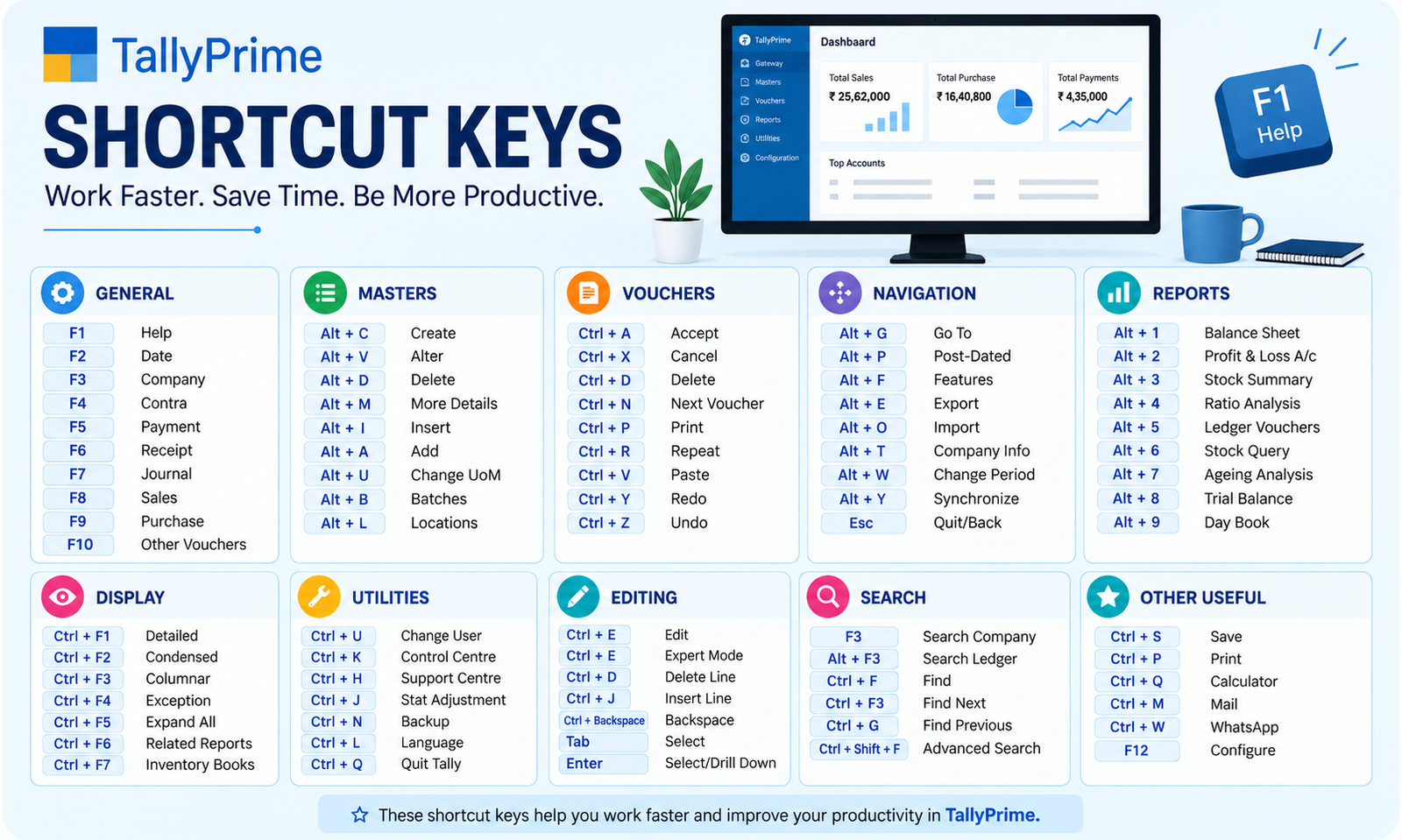
TallyPrime Shortcut Keys: Complete Guide to Boost Accounting Productivity (2026)
Accounting professionals who master TallyPrime keyboard shortcuts work significantly faster than those who rely on mouse navigation. Shortcuts eliminate repetitive menu clicking, reduce data entry time, and allow accountants to focus on financial analysis rather than application navigation.
Whether you’re processing daily vouchers, generating reports, managing inventory, or performing administrative tasks, TallyPrime’s comprehensive shortcut system can cut your work time by 40-60%. This guide covers essential F-keys, Ctrl combinations, Alt commands, and advanced shortcuts used by experienced Tally operators.
By the end of this guide, you’ll have a complete reference for every major TallyPrime function and the keyboard command to access it instantly.
What Are TallyPrime Shortcut Keys?
Shortcut keys are predefined keyboard combinations that allow you to access features and commands without navigating through menus. They consist of function keys (F1-F12), modifier keys (Ctrl, Alt, Shift), and their combinations.
⌨️ Benefits of Using Shortcut Keys
- Save 40-60% time on routine accounting tasks
- Reduce mouse dependency and repetitive strain
- Minimize data entry errors through faster input
- Improve overall accounting team productivity
- Process more transactions in less time
- Enable faster month-end close procedures
- Improve accuracy through familiar workflow patterns
- Support consistent accounting processes
💡 Key Insight: Experienced TallyPrime users often work entirely from the keyboard, completing complex accounting tasks without touching the mouse. This level of efficiency comes from regular practice with shortcuts.
Navigation and Company Management Shortcuts
These fundamental shortcuts help you navigate TallyPrime quickly and manage company operations.
| Shortcut Key | Function | Use Case |
|---|---|---|
|
F1 | Select Company | Switch between different companies in your database |
|
F2 | Change Date | Modify the working date for transactions |
|
Alt + F2 | Change Period | Switch to a different accounting period |
|
Esc | Exit Screen | Close current window and return to previous screen |
|
Ctrl + A | Accept Screen | Save entry and proceed to next transaction |
|
Ctrl + Q | Quit without Saving | Exit without saving current entry (use carefully) |
|
Ctrl + Enter | Alter Master | Edit master data directly from report view |
|
Alt + Home | Gateway of Tally | Return to main TallyPrime dashboard |
✓ Pro Tip: Press Esc key to navigate back through screens, and Ctrl + A to quickly move to the next data entry field. This combination is essential for fast voucher entry workflows.
Voucher Entry Shortcut Keys
F-keys (F4-F9) are the backbone of TallyPrime voucher entry. These shortcuts allow you to instantly create different types of accounting entries without menu navigation.
1. Primary Voucher Types
| Shortcut | Voucher Type | Purpose |
|---|---|---|
| F4 | Contra Voucher | Bank or cash transfers |
| F5 | Payment Voucher | Pay suppliers and vendors |
| F6 | Receipt Voucher | Receive customer payments |
| F7 | Journal Voucher | Record non-cash transactions |
| F8 | Sales Voucher | Record sales and revenue |
| F9 | Purchase Voucher | Record purchases |
2. Credit and Debit Notes
|
Shortcut |
Document Type |
Function |
|---|---|---|
|
Ctrl + F8 | Credit Note | Reduce sales amount or reverse a sale |
|
Ctrl + F9 | Debit Note | Reduce purchase amount or reverse a purchase |
|
Alt + F8 | Delivery Note | Record goods dispatch without immediate invoice |
|
Alt + F9 | Receipt Note | Record goods receipt for verification |
Report Access Shortcuts
Access TallyPrime’s powerful reporting features instantly with these shortcuts:
Financial Reports
- Alt + F1: Profit & Loss
- Alt + F3: Trial Balance
- Alt + F4: Balance Sheet
- Alt + F5: Cash Flow
- Alt + F6: Fund Flow
- Alt + F7: Ratio Analysis
Operational Reports
- Ctrl + F1: Day Book
- Ctrl + F2: Outstanding Report
- Ctrl + F3: Stock Summary
- Ctrl + F4: Stock Valuation
- Ctrl + F5: GST Reports
- Ctrl + F6: Banking Reports
2. Credit and Debit Notes
Most frequently used reports in day-to-day accounting:
3. Inventory and Stock Management Shortcuts
Manage inventory efficiently with these specialized shortcuts:
|
Shortcut Key |
Function |
Purpose |
|---|---|---|
|
Ctrl + F7 | Stock Journal | Transfer stock between godowns or locations |
|
Alt + Ctrl + F8 | Physical Stock | Record actual stock count during inventory verification |
|
Ctrl + Shift + F8 | Rejection Out | Record rejected goods sent to suppliers |
|
Ctrl + Shift + F9 | Rejection In | Record rejected goods received from customers |
|
Shift + F4 | Manufacturing Journal | Record production and raw material usage |
|
Alt + Ctrl + F7 | Opening Stock | Set opening inventory balances |
✓ Best Practice: Use Ctrl+F3 regularly to monitor stock levels and Alt+Ctrl+F8 to reconcile physical count with system records. This prevents inventory discrepancies.
4. Advanced Shortcuts for Power Users
Manage inventory efficiently with these specialized shortcuts:
1. Data Entry Efficiency
↓ Tab / Down Arrow — Move to next field in voucher entry
↑ Shift + Tab / Up Arrow — Move to previous field
* * (Asterisk) — Open calculator in amount field
+ + (Plus) — Create new ledger/item during entry
Ins Insert — Add new line in multi-line vouchers
Del Delete — Remove current line in voucher
2. Report Navigation
3. Search and Filter Functions
Quick access to data without scrolling:
⚡ Essential Search Shortcuts:
- Ctrl + F — Find specific transaction or entry
- Ctrl + G — Go to specific line or record
- Ctrl + H — Find and replace ledger or account details
- Ctrl + N — Navigate to next matching record
Master These Time-Saving Techniques
Combine shortcuts with these professional workflows to maximize productivity:
Speed Voucher Entry
F8 → Enter details → Ctrl+A → Repeat. Process 50+ daily sales in minutes using keyboard-only workflow.
Daily Report Review
Alt+F1 (P&L) → Ctrl+F1 (Day Book) → Alt+F3 (Trial). Morning review in 2 minutes.
Mistake Correction
Ctrl+F → Find wrong entry → Ctrl+Enter → Edit → Ctrl+A. Fix errors instantly.
4. Advanced Shortcuts for Power Users
Week 1: Foundation
F1 – F9 voucher keys
F2 – Change date
Ctrl + A – Accept
Esc – Exit
Week 2: Reports
Alt + F1 – P&L
Alt + F3 – Trial Balance
Alt + F4 – Balance Sheet
Ctrl + F1 – Day Book
Target: By end of Week 2, you should handle 90% of daily work using only keyboard. Mouse becomes optional for most tasks.
Common Mistakes When Using Shortcuts
Avoid these pitfalls to maintain data accuracy and efficiency:
1. Advanced Shortcuts for Power Users
The most dangerous shortcut. Always use Esc to exit, not Ctrl+Q.
⚠️ Warning: Ctrl+Q immediately exits without saving. Use only when you want to abandon changes. For safe exit, use Esc after saving with Ctrl+A.
2. Wrong Voucher Type Selection
Tab key moves too quickly, and users sometimes miss mandatory fields like Reference or Amount.
✓ Tip: TallyPrime highlights required fields in red. Always check for red-highlighted fields before pressing Ctrl+A to accept.
Printable Shortcut Reference Card
Use this quick reference to memorize the most essential shortcuts:
| Category | Shortcut | Function | Frequency |
|---|---|---|---|
|
Most Essential |
F8 | Sales Voucher |
Daily |
|
Most Essential |
F9 | Purchase Voucher |
Daily |
|
Most Essential |
Ctrl + A | Accept Entry |
Daily |
|
Very Important |
F5 | Payment Voucher |
Daily |
|
Very Important |
F6 | Receipt Voucher |
Daily |
|
Very Important |
F2 | Change Date |
Daily |
|
Important |
Alt + F1 | Profit & Loss |
Weekly |
|
Important |
Alt + F3 | Trial Balance |
Weekly |
|
Important |
Ctrl + F1 | Day Book |
Weekly |
Master TallyPrime Shortcuts
Learn keyboard shortcuts from experts and boost your accounting productivity by 40-60% in just 2 weeks.
✓ Live Shortcut Training
Expert-led sessions covering all essential and advanced shortcuts
✓ Speed Challenges
Practice drills to build muscle memory and increase data entry speed
✓ Personalized Support
One-on-one coaching to master your accounting workflow
✓ Printable Reference Guide
Complete shortcut reference card to keep at your desk
40L+
Users Trained
95%
Success Rate
4.9★
Avg. Rating
Frequently Asked Questions
How long does it take to master TallyPrime shortcuts?
Most users become proficient with essential shortcuts (F4-F9, Ctrl+A, Esc) within 1-2 weeks of daily practice. Advanced shortcuts take 4-6 weeks to master. Consistent practice accelerates learning significantly.
Do I need to memorize all shortcuts?
No. Focus on the most frequently used shortcuts first (F8, F9, F5, F6, Ctrl+A). Print this guide and reference it until muscle memory develops. Most users eventually memorize 15-20 core shortcuts.
Can shortcuts reduce data entry errors?
Yes. Keyboard-based workflows often reduce errors because users maintain consistent patterns. Additionally, faster data entry means fewer distractions and better focus on accuracy.
Which shortcuts are most important for GST compliance?
Key shortcuts for GST: F8/F9 (sales/purchase entries), Ctrl+F5 (GST reports), Alt+F1 (P&L), and Ctrl+F9 (debit notes). These shortcuts ensure GST-compliant invoicing and reporting.
Which shortcuts are most important for GST compliance?
Key shortcuts for GST: F8/F9 (sales/purchase entries), Ctrl+F5 (GST reports), Alt+F1 (P&L), and Ctrl+F9 (debit notes). These shortcuts ensure GST-compliant invoicing and reporting.
How do I customize shortcuts in TallyPrime?
TallyPrime’s shortcut keys are fixed and cannot be customized. However, you can configure auto-fill templates and defaults for faster entry. Contact your Tally administrator for customization options.
What’s the best shortcut for month-end close?
Use this sequence: F2 (change to last date of month) → Alt+F3 (Trial Balance) → Alt+F1 (P&L) → Alt+F4 (Balance Sheet). This provides complete month-end verification in 2 minutes.
Conclusion
TallyPrime shortcut keys are the secret weapon of productive accountants. They eliminate menu navigation, reduce data entry time, and enable consistent, fast accounting workflows. Professionals who master these shortcuts complete in hours what average users do in full days.
Start with the essential F-keys (F4-F9) and navigation shortcuts, practice daily, and gradually add advanced shortcuts to your workflow. Within 2-3 weeks of consistent practice, you’ll notice a dramatic improvement in speed and accuracy. Use this guide as your reference, print the shortcut card, and commit to keyboard-based accounting.
Why Buy TallyPrime from Tally Software Shop?
At Tally Software Shop, we provide more than software licenses. We deliver productivity solutions:
📦 Complete Solution
Genuine TallyPrime Licenses
Original TallyPrime Silver & Gold editions with official support, updates, and 24/7 technical assistance.
🎓 Expert Training
Shortcut Mastery Program
Comprehensive training on shortcuts, productivity techniques, advanced workflows, and team coaching.
📞 Contact Tally Software Shop: Call +91 9108024198 or visit our Bangalore office. We provide free shortcut training with every TallyPrime license purchase to ensure your team maximizes productivity instantly.
Explore More Resources
TallyPrime Pricing & Editions 2026
Complete pricing guide for TallyPrime Silver, Gold, and all available editions.
TallyPrime Features & Capabilities
Discover all advanced features that make TallyPrime the #1 accounting software in India.
TallyPrime Implementation & Setup
Expert guidance on installing, configuring, and optimizing TallyPrime for your business.